Privacy Policy Generator
Generate a privacy policy aligned with GDPR requirements, tailored to your organisation's data processing profile.
The Privacy Policy Generator creates a legally structured privacy policy document based on your organisation's specific data processing activities. Instead of copying a generic template, ObligoBoard produces a policy tailored to your organisation profile.
Why it matters
Every organisation that processes personal data needs a privacy policy. Regulators expect the policy to accurately reflect your actual data processing activities — not a one-size-fits-all boilerplate. The generator ensures your policy covers exactly what it needs to, based on the details in your organisation profile.
Before you start
The Privacy Policy Generator reads your organisation's details directly from your Organisation Profile (Settings > Organisation). Before generating, make sure the following fields are completed:
- Registered name — your organisation's legal entity name
- Contact email — the email for privacy-related inquiries
- Country — determines the supervisory authority section
- Address — appears in the "Who we are" section
- City — part of the controller identity
If any required fields are missing, the generator will show a list of what needs to be completed, with a link to your organisation settings.
Additional fields like DPO details, retention periods, and third-party processors are optional but recommended. The more complete your profile, the more comprehensive the generated policy.
Generating the document
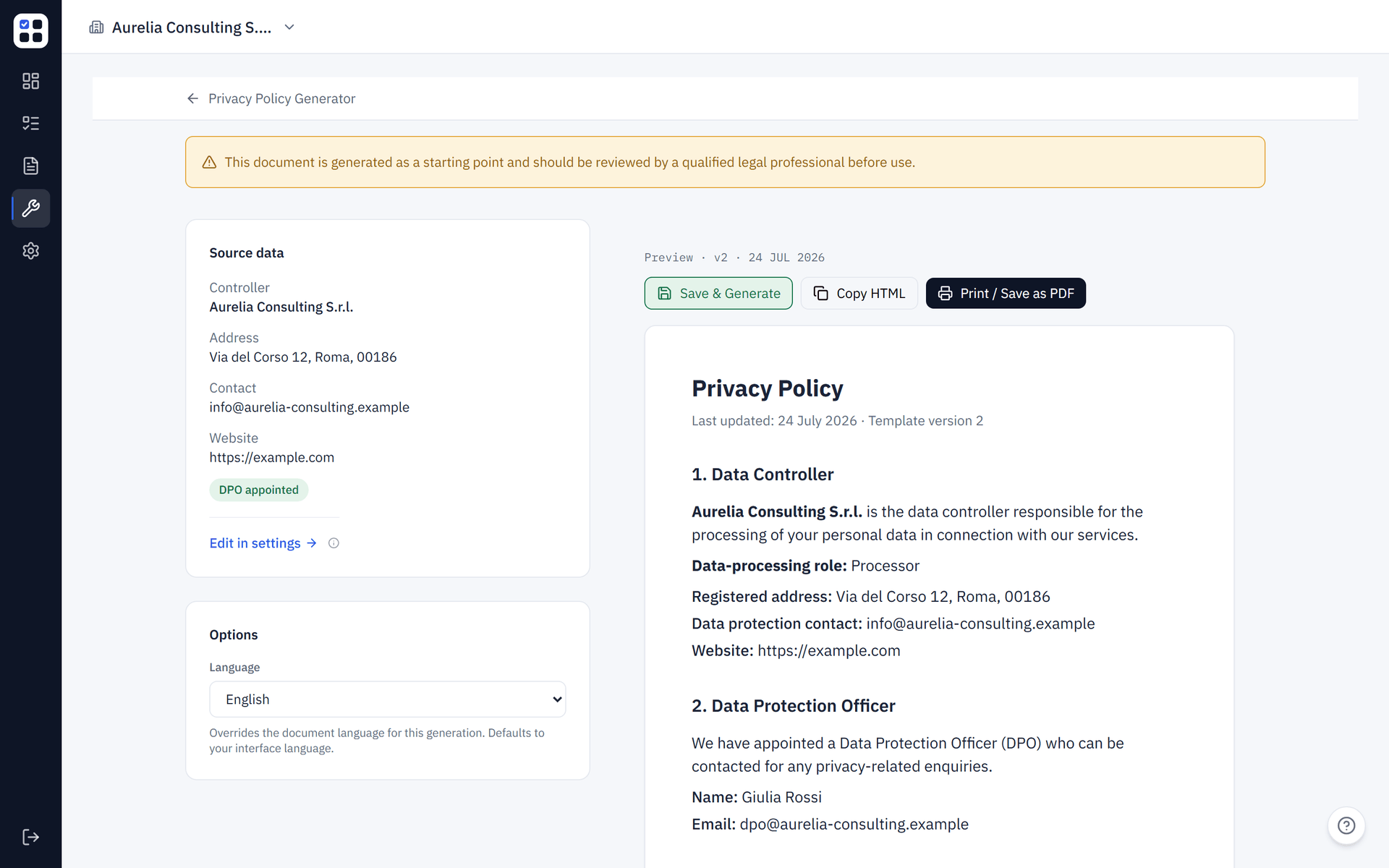
Navigate to Tools > Privacy Policy Generator. If your organisation profile is complete, ObligoBoard generates a formatted privacy policy document within seconds.
To update your organisation details, click Edit Details in the toolbar — this takes you to your organisation profile settings. After saving changes, return to the generator and click Save & Generate to create a new version.
Conditional sections
The generator automatically includes or excludes sections based on your organisation's profile:
| Profile attribute | Section included |
|---|---|
| International data transfers | Transfer mechanisms and safeguards |
| Automated decision-making / AI | Profiling and automated decisions |
| Children's data processing | Children's privacy section |
| Special category data | Sensitive data processing grounds |
| Marketing activities | Direct marketing and opt-out rights |
| DPO appointed | Data Protection Officer contact details |
| Retention periods defined | Data retention schedule table |
| Third-party processors listed | "Who we share your data with" section |
If a section does not apply to your profile, it is omitted entirely — keeping the policy concise and accurate.
Supervisory authority
The generator automatically detects your supervisory authority based on the country set in your organisation profile. For example, a German organisation will see a reference to the BfDI, while an Irish organisation will reference the Data Protection Commission. If no country is set, this section is omitted.
Legal basis per data category
The policy includes a table mapping each data category you process to the legal basis relied upon (consent, legitimate interest, contractual necessity, legal obligation, etc.). This table is populated from your risk assessment answers and organisation profile.
Document versioning
Each time you generate a policy, ObligoBoard saves it as a new version with a timestamp.
Outdated detection
If you update your risk assessment or change your organisation profile after generating a policy, ObligoBoard displays an Outdated policy banner at the top of the policy page. This banner reminds you to regenerate so your published policy matches your current processing activities.
Previous versions
All previously generated versions are listed below the current policy. You can view any past version to compare changes or for audit trail purposes.
Regenerating
To update your policy, edit your organisation profile in Settings > Organisation, then return to the generator and click Save & Generate. A new version is created — the previous version is preserved in the version history.
Regenerating creates a new version but does not automatically publish it. Make sure to update your website with the new version after generating.