Account & Organisation Settings
Manage your profile, organisation details, risk profile, and notification preferences.
The Settings page is your central hub for managing your account, your organisation, and how ObligoBoard behaves for you and your team.
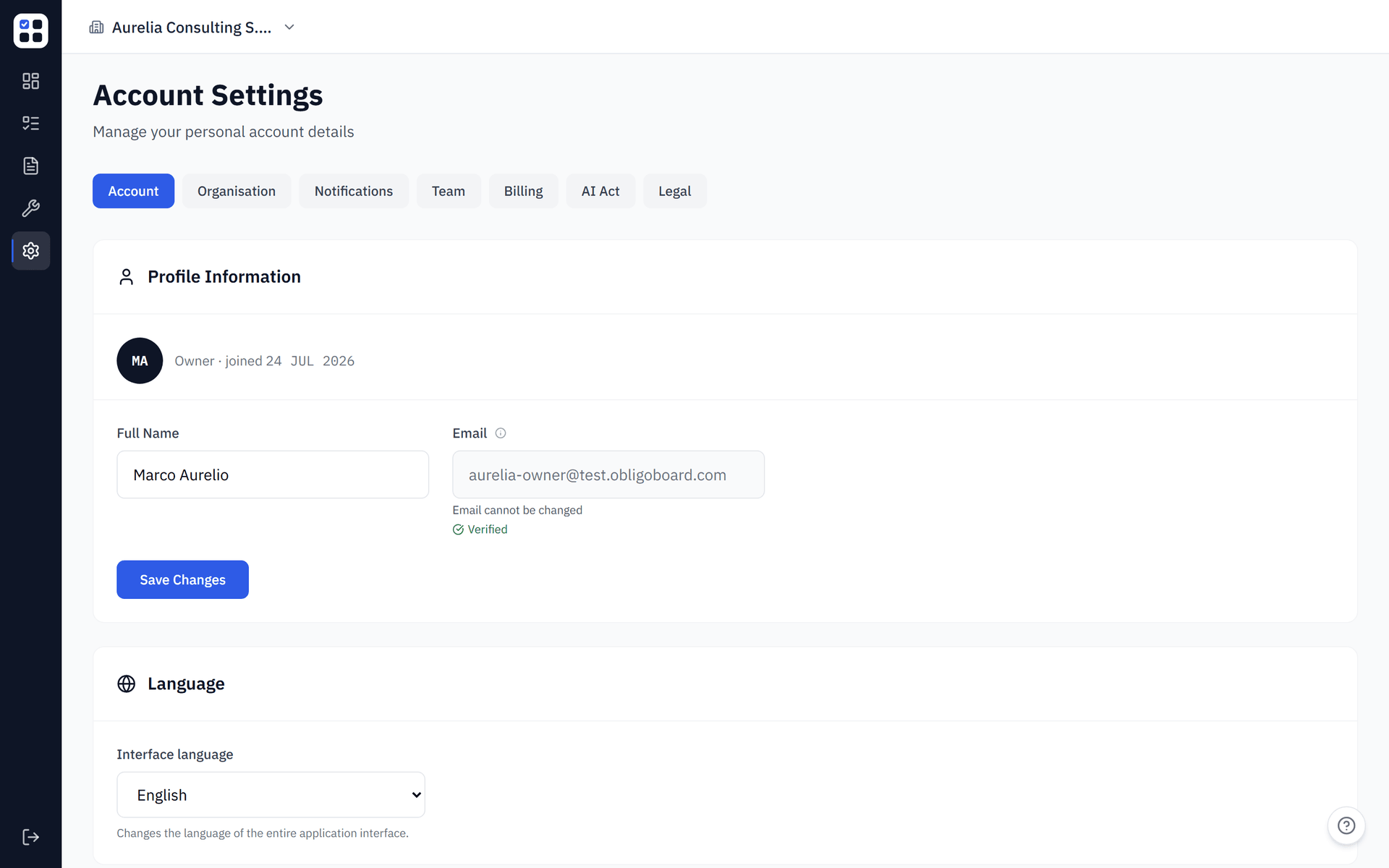
Settings hub overview
Settings is organised into tabs covering your account, organisation, team, notifications, billing, AI Act, and legal documents:
Your personal profile — name, email, password, locale, and email verification status.
Organisation name, country, policy details (contact, address, DPO), and risk profile fields. See Organisation profile for full details.
Invite members, manage roles, and remove users. See Team Management for full details.
Control which email notifications you receive. See Notifications for full details.
View your plan, manage your subscription, and access invoices. See Billing & Plans for full details.
Record your organisation's GPAI Code of Practice signature status (Art. 56) — signing gives GPAI providers a presumption of conformity. See AI Act classification for the wider suite.
Sign the Data Processing Agreement (DPA) for your organisation. See DPA signing for full details.
Which tabs you see depends on your role. Account, Organisation, and Notifications are available to everyone; Team, Billing, and AI Act are admin-only; Legal is owner-only. If a tab is missing, it is hidden because of your role, not because it is broken.
Account settings
Name and email
Update your display name and email address. If you change your email, a new verification email is sent to the updated address. Your previous email remains active until you confirm the new one.
Password
Change your password from the Account tab. You must enter your current password before setting a new one.
Locale and language
Set your preferred locale and language. This affects date formatting, number formatting, and the language of the ObligoBoard interface where translations are available.
Email verification
Your email verification status is shown on the Account tab. If your email is not verified, a banner prompts you to check your inbox. You can resend the verification email from this section.
Some features (such as inviting team members) require a verified email address. Verify your email to unlock full functionality.
Organisation profile
The Organisation tab holds your organisation profile — organisation name, country, controller identity (registered name, address, contact email, registration number), DPO details, and the risk-profile fields that drive policy generation. It is the single source of truth for the Privacy Policy Generator and Cookie Policy Generator: both render straight from your profile, so an incomplete or stale profile produces a wrong or blocked policy.
For the field-by-field guide, the country-to-supervisory-authority mapping and mismatch acknowledgement, the missing-fields gate, and the out-of-date banner after an edit, see Organisation profile.
The Organisation tab also hosts two obligation-management actions, covered below: Re-seed obligations and Retake Assessment.
Re-seed functionality
If your obligation set has become inconsistent (e.g. after significant profile changes or during early setup), you can re-seed your obligations from the Organisation tab.
What re-seeding does
Re-seeding regenerates all obligations for your active frameworks based on your current profile. Existing obligation statuses and evidence are preserved where the obligation still exists in the new set.
When to use it
- After retaking the assessment with significantly different answers
- If you notice missing obligations that should exist for your frameworks
- When instructed by ObligoBoard support
The CONFIRM / RE-SEED flow
Click Re-seed obligations
On the Organisation tab, click the Re-seed obligations button.
Type CONFIRM
A confirmation dialog appears. Type CONFIRM in the text field to proceed. This safeguard prevents accidental re-seeding.
Click RE-SEED
Click the RE-SEED button to start the process. ObligoBoard regenerates your obligations and recalculates your programme completeness score.
Re-seeding is a significant action. While it preserves existing statuses, it may add new obligations or remove ones that no longer apply to your profile. Use it only when necessary.
Retake Assessment
You can retake the full 8-step risk assessment from the Organisation tab by clicking Retake Assessment. This launches the same wizard you completed during onboarding, pre-filled with your current answers. See Risk Assessment & Scoring for details on what changes when you retake it.