AI Incident register
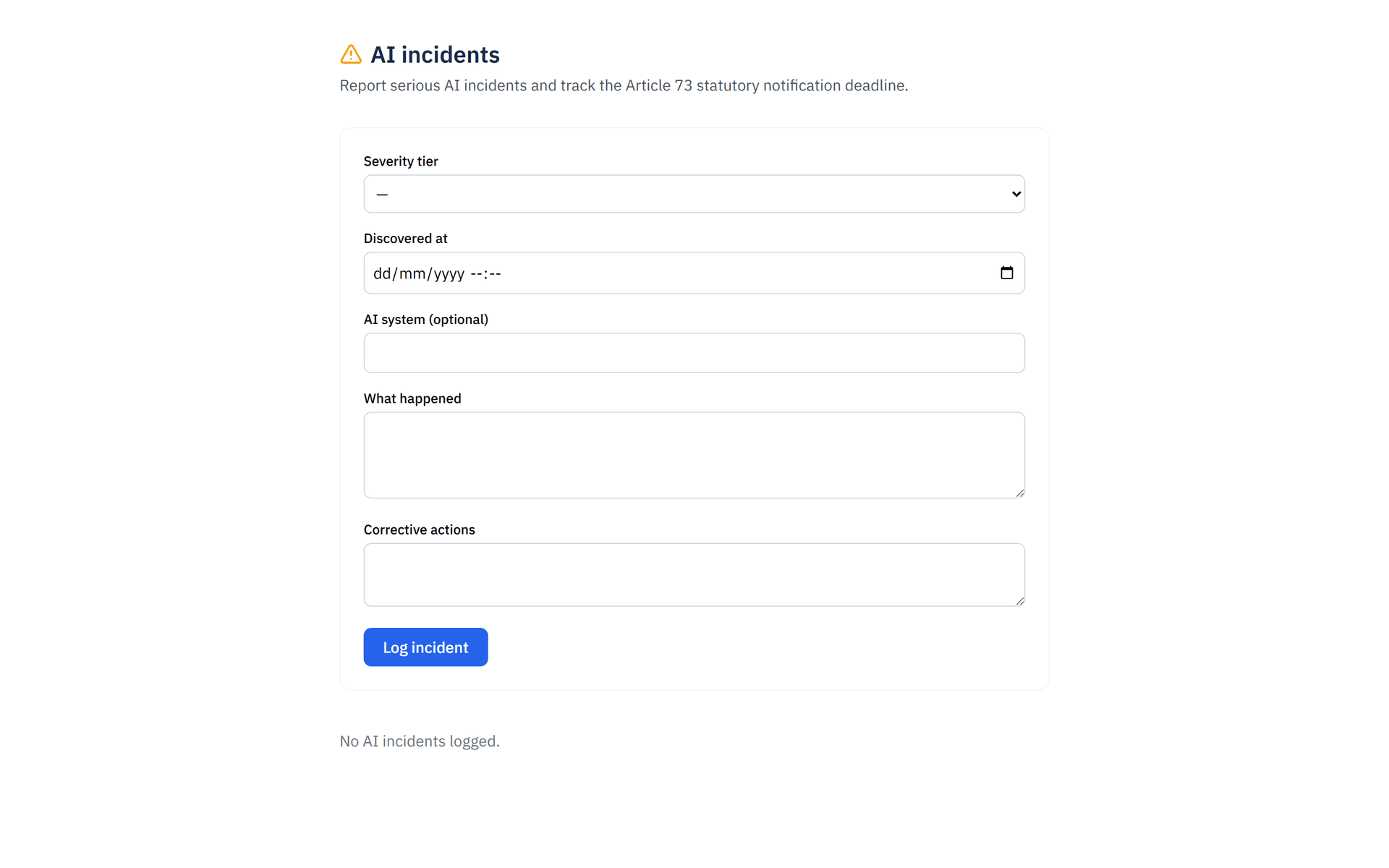
The AI Incident register at /ai-incidents logs serious AI incidents under EU AI Act Article 73 — the severity tiers, the statutory deadline that runs from when you discovered the incident, mark-as-notified (authority + reference), and export. Logging is not notifying the authority.
Article 73 of the EU AI Act requires providers and deployers of high-risk and general-purpose AI systems to log serious incidents and notify the competent authority within a statutory window. ObligoBoard's AI Incident register at /ai-incidents lets you log an incident, see the deadline countdown, mark it as notified once you have contacted the authority, and export a report. This page covers when to log, the fields, the deadline, mark-as-notified, and export — and the difference between logging and notifying.
When to log
Log a serious AI incident under Article 73. The register has no separate "is this serious?" toggle — the severity tier you choose is the determination. The five tiers:
- Death or serious harm
- Critical-infrastructure disruption
- Widespread infringement
- Causal link established
- Ordinary serious incident
Each tier carries its own statutory window (see below).
Logging an incident
Open the AI Incident register
Go to /ai-incidents and use the log-an-incident form.
Set the severity tier
Choose the tier that matches the incident. The tier sets the statutory window.
Set Discovered at
Enter when you became aware of the incident. This starts the statutory clock.
Add the AI system, narrative, and corrective actions
Optionally name the AI system, describe what happened, and record corrective actions.
Save
The incident is recorded and the deadline countdown appears.
The fields:
| Field | Required | What it captures |
|---|---|---|
| Severity tier | Yes | The seriousness of the incident (the five tiers above) |
| Discovered at | Yes | When you became aware — starts the statutory clock |
| AI system | No | Free-text identifier for the system involved |
| What happened | No | A narrative of the incident |
| Corrective actions | No | What you did or will do in response |
The statutory clock starts from Discovered at — the date you became aware of the incident, not the date you log it. Set it accurately; it sets your deadline.
The statutory deadline
The window depends on the severity tier and runs from the discovered-at date:
- Death or serious harm, critical-infrastructure disruption, widespread infringement — 2 days (Article 73(2))
- Causal link established — 10 days (Article 73(4))
- Ordinary serious incident — 15 days (Article 73(3), the default window)
The register shows a countdown badge for each incident:
- Red when 24 hours or fewer remain, or the deadline has passed
- Amber when 72 hours or fewer remain
- Gray otherwise
The label reads Overdue, Due today, or N days left. The countdown refreshes while the page is open.
Logging is not notifying
Logging an incident in ObligoBoard records it internally and starts your countdown. It does not notify the competent authority. You must notify the authority yourself within the statutory window. Once you have, mark the incident as notified (next section).
Logging is not notifying. The authority is not contacted when you log an incident. Notify the authority yourself within the window, then mark the incident notified in the register.
Marking an incident as notified
For each open incident, you can mark it notified. The mark-as-notified action captures:
- Supervisory authority — the authority you notified
- Notification reference — the reference they returned
- Notified at — set automatically to the current time
Both the authority and the reference are required. ObligoBoard will not record a notification without both — a partial entry is rejected with a list of the missing fields, and nothing is saved. On success the status flips to Notified and the action is recorded in the audit log.
An incident moves through three states: Open → Notified → Closed. You can also re-classify an incident's severity after logging, which recomputes the statutory deadline from the original discovered-at date, and you can close an incident when it is resolved.
Exporting an incident
Owners can export an incident as a self-contained, print-ready HTML report. Use your browser's Print → Save as PDF to produce a PDF from it. The report includes the incident ID, AI system, severity tier, statutory window, discovered-at, statutory deadline, narrative, corrective actions, the notification record (authority, reference, notified-at), and the timeline (created, updated, closed).