Cookie Scanner
Automatically detect cookies on your website and compare them against your declared cookie list.
The Cookie Scanner visits your website using a headless browser and records every cookie set during the page load. It gives you an objective view of what cookies your site actually places, so you can keep your cookie policy accurate and complete.
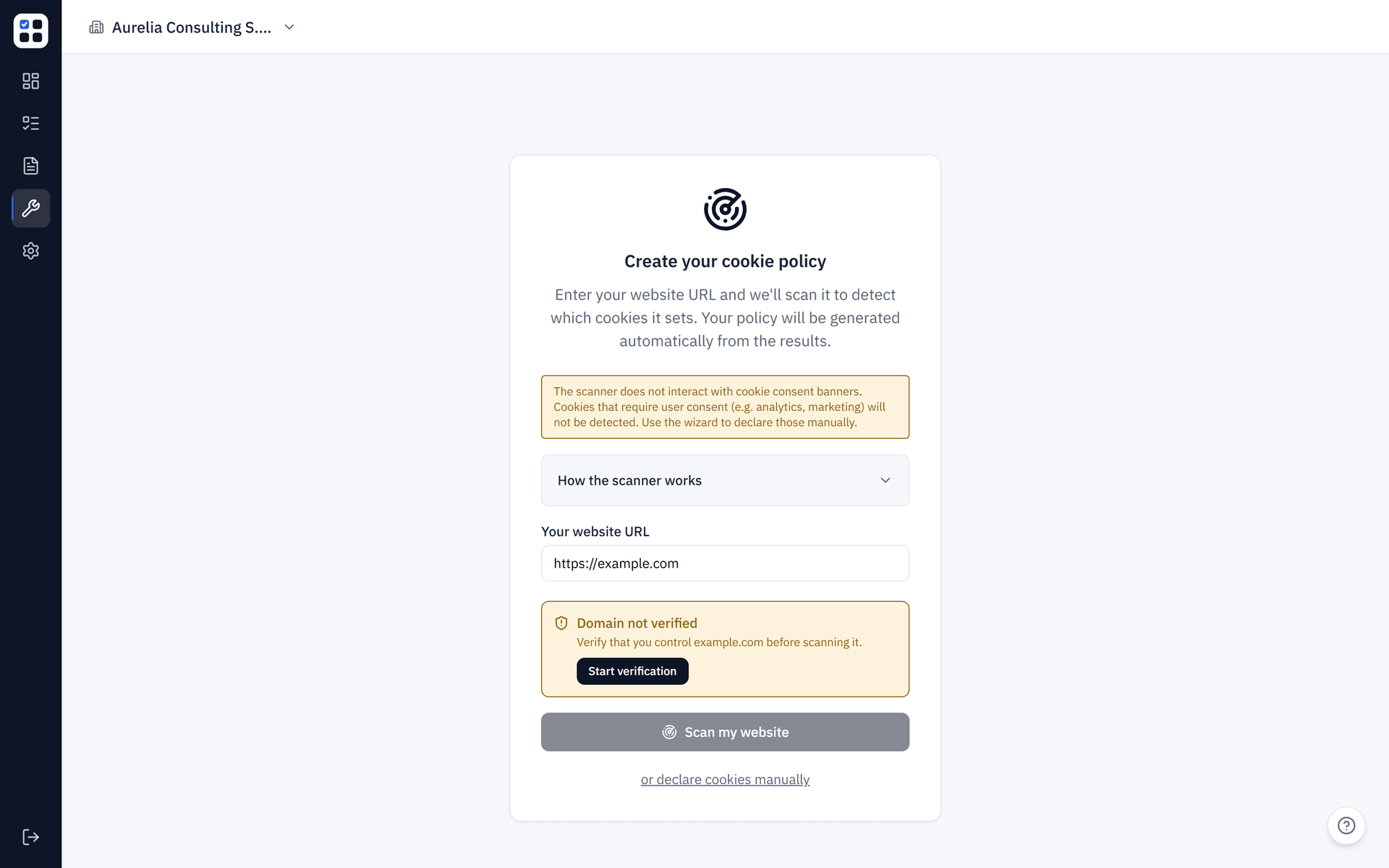
What the cookie scanner does
When you run a scan, ObligoBoard sends a request to an external scanning service that launches a headless Chromium browser. The browser navigates to your website URL, waits for the page to fully load, and captures all cookies that are set during that process. The results are then compared against the cookies you have already declared in the Cookie Policy Generator.
This automated approach removes the guesswork from cookie compliance — instead of manually checking browser DevTools, you get a structured report highlighting what changed.
How to run a scan
Enter your website URL
Open the Cookie Policy tool and enter the URL you want to scan (typically your homepage).
Verify domain ownership (first time only)
If this is the first time scanning this domain, ObligoBoard shows a verification panel with a token and instructions. Follow them once — see Verifying domain ownership below.
Click Scan website
Press the Scan website button. The scanner queues your request and begins loading your site in a headless browser.
Wait for results
Scanning typically takes 30–60 seconds. ObligoBoard polls for results automatically — you do not need to refresh the page. A progress indicator shows while the scan is running.
Verifying domain ownership
Before ObligoBoard will scan a domain, you must prove you control it. This isn't extra friction for its own sake — the scanner is a real, outbound crawler, and without an ownership check anyone could enter a third party's website and have ObligoBoard crawl it on their behalf. Verification keeps scans limited to sites you're actually authorized to audit.
Verification happens once per domain, in the scan bar of the Cookie Policy tool. ObligoBoard issues a token and offers two ways to prove ownership — you only need to complete one:
- DNS TXT record — add a TXT record at
_obligoboard-verify.<yourdomain>containing the exact token shown. - Well-known file — serve a plain-text file at
https://<yourdomain>/.well-known/obligoboard-verify.txtwhose entire content is the exact token shown.
Once either check passes, click Check now and the domain is marked verified — scanning unlocks immediately. DNS changes can take a few minutes to propagate; if the check doesn't pass right away, wait a moment and try again.
If your organization already had a completed scan on your organization profile's website before this feature shipped, that domain was automatically grandfathered as verified — no action needed. Any other domain (a staging host, a different brand, a client's site) still needs its own verification.
Verification can be removed at any time from the same panel (for example, if you no longer control the domain). Removing it disables scanning for that domain until it's verified again.
Interpreting results
After a scan completes, ObligoBoard presents a diff view comparing the scanned cookies against your current declaration.
- Added — cookies found on your website that are not yet in your declaration. These are new cookies you should review and add to your policy.
- Removed — cookies in your declaration that were not detected during the scan. They may have been removed by a third-party tool update or a code change. Consider removing them from your policy.
- Unchanged — cookies that match between your declaration and the scan results. No action needed.
Needs-review badge
Cookies that the scanner cannot automatically match to an entry in the cookie reference database are flagged with a Needs review badge. This means ObligoBoard detected the cookie but could not determine its category or purpose. You should manually review these cookies, assign the correct category, and update your declaration.
Click Accept changes to update your declaration based on the scan results, or dismiss individual items you want to keep as-is.
Known limitations
The cookie scanner has several limitations you should be aware of to avoid false negatives.
- No consent banner interaction — the headless browser does not click "Accept" on cookie consent banners. Cookies that are only set after a visitor accepts consent will not appear in scan results.
- No authenticated pages — the scanner cannot log in to your website. Cookies set only on authenticated pages (e.g. dashboards, account areas) will not be captured.
- Single page per scan — the scanner loads only the exact URL you enter (typically your homepage) and does not crawl your site or follow links to other pages. If different pages set different cookies, run a separate scan against each URL.
- No user interaction — cookies triggered by user actions such as clicking buttons, submitting forms, or playing videos will not be detected.
Scanner availability
The cookie scanning feature relies on an external scanning service. If the service is not configured or is temporarily unreachable, ObligoBoard displays a Scanner not yet available message in the Cookie Policy tool.
When the scanner is unavailable, you can still create and manage your cookie policy manually using the wizard and the cookie reference database. Scanning is an optional verification tool — it does not block policy generation.
Stale scan warning
If more than 90 days have passed since your last scan, ObligoBoard displays a warning banner on the Cookie Policy page. Cookie configurations change as you add or remove third-party tools, update analytics providers, or deploy new features. Regular scanning keeps your policy accurate.
We recommend rescanning whenever you:
- Add or remove a third-party script (analytics, marketing pixels, chat widgets)
- Deploy a major site update
- Change your consent management setup
- See the 90-day stale scan banner