Obligation detail
Everything you can do on an individual obligation — update status, upload evidence, read guidance, manage assignments, and review the activity log.
The obligation detail page is where day-to-day compliance work happens. Open any obligation from the Dashboard or Obligations list to see its full context — guidance, evidence, status, history, and a complete audit trail.
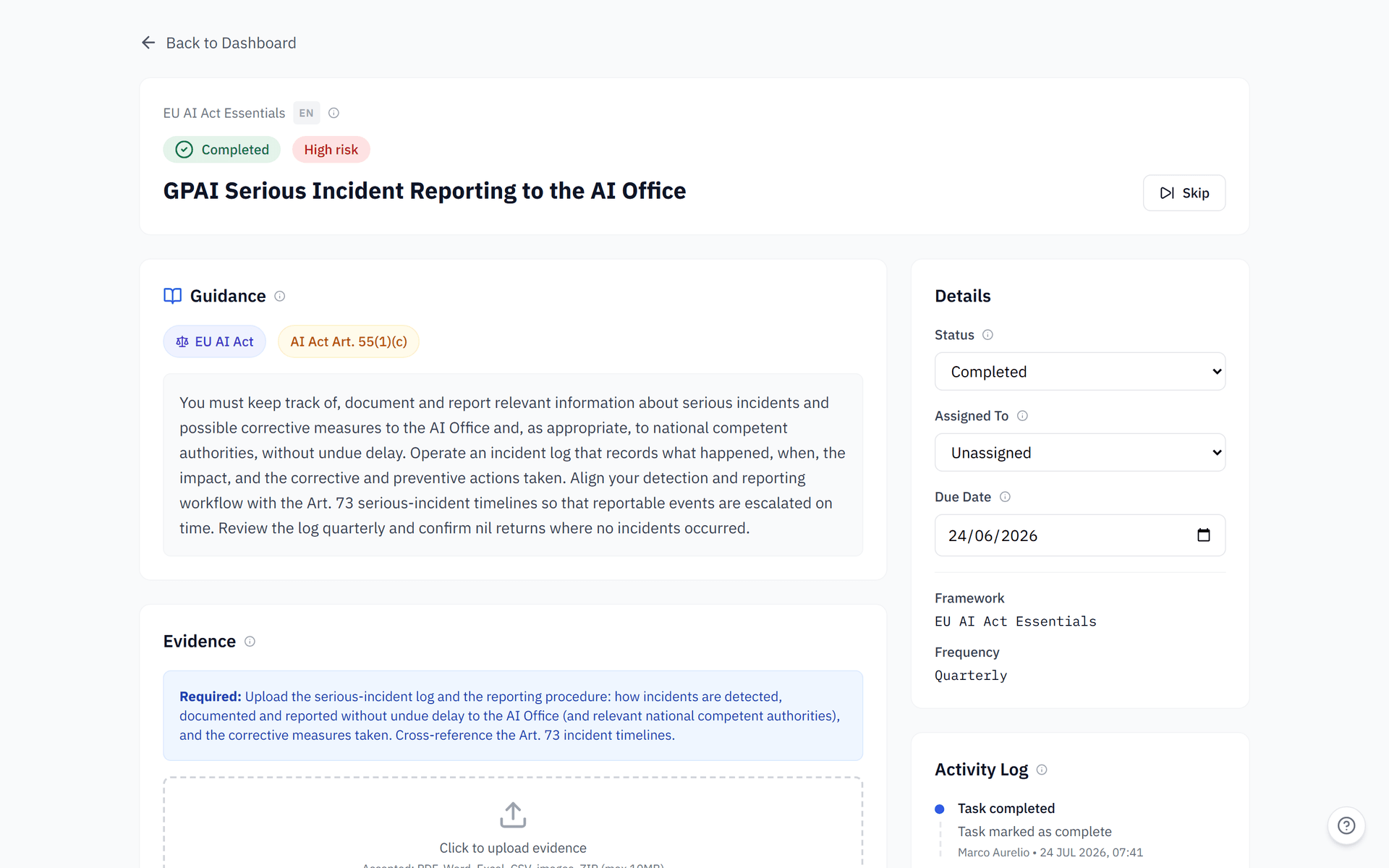
Page layout
The obligation detail page has two columns:
Main column (left):
- Header with framework badge, locale badge, obligation title, and status + risk badges
- Inline editors for Status, Assigned To, and Due Date
- Guidance panel with jurisdiction, legal reference, and plain-language description
- Evidence section with upload area and file list
- Notes section for internal team comments
Sidebar (right):
- Activity Log — chronological audit trail of every change
- Past Periods — historical instances of recurring obligations
Header and badges
The top of the page shows:
- Framework badge (e.g.
GDPR Basics) — links back to the obligation's source framework - Locale badge (e.g.
EN) — language of the obligation guidance - Status badge (Not Started, In Progress, Completed, Skipped, Overdue) — colour-coded
- Risk badge (Low, Medium, High) — with an info tooltip explaining why this risk level was assigned
Risk reason tooltip
When ObligoBoard adjusts an obligation's risk level based on your organisation profile, hovering the info icon (i) next to the risk badge reveals the reason. For example, a DPIA may be elevated to High risk for healthcare organisations or those processing high volumes of personal data.
Editing status, assignee, and due date
Three inline editors at the top of the page let you update the obligation's core fields without opening a modal:
| Field | What it controls |
|---|---|
| Status | Dropdown: Not Started, In Progress, Completed, Skipped |
| Assigned To | Dropdown of all team members in the organisation, or "Unassigned" |
| Due Date | Date picker — overrides the auto-generated due date for this period |
Changes save automatically when you select a value. The Activity Log records each change with a timestamp and the actor's name.
For recurring obligations (monthly, quarterly, annual), changing the due date only affects the current period. The next period's due date is generated automatically when this one is completed.
Guidance panel
The Guidance panel explains what the obligation requires and why. It includes:
- Jurisdiction badge (e.g.
EU/UK GDPR) — which regulatory framework this obligation maps to - Legal reference badge (e.g.
GDPR Art. 15) — the specific article or section that defines the obligation - Description — plain-language explanation of what your team needs to do, written for non-lawyers
Use the guidance to understand the requirement before assigning or completing the obligation. The legal reference is the source of truth — click it to look up the full regulatory text.
Evidence section
The Evidence section is where you upload supporting documents for this obligation. Files uploaded here are included in your Evidence Pack reports automatically.
Evidence required callout
Some obligations are flagged as evidence required. When you try to mark these as Completed without uploading any files, ObligoBoard shows a warning dialog with two choices:
- Upload evidence — opens the upload area; recommended path
- Mark complete anyway — completes the obligation but leaves a flag that no evidence was attached. Your programme completeness score for this obligation will be 0.7x instead of the full 1.0x.
Upload limits
| Limit | Value |
|---|---|
| Maximum file size | 10 MB per file |
| Files per obligation | Unlimited |
| Total storage | Shared across all obligations in your organisation. The current usage is shown next to the upload area. |
| Allowed file types | Documents (PDF, DOC/DOCX, XLS/XLSX, CSV, TXT, ODT, ODS), images (PNG, JPG/JPEG, GIF, WEBP), and ZIP archives. Executables, scripts, and active web content (HTML, SVG, JS, etc.) are blocked for security. |
File actions
Each uploaded file shows its name, size, upload date, and the user who uploaded it. You can:
- Download the file
- Delete the file (this triggers a score recalculation)
Deleting evidence from a Completed obligation drops its score weight from 1.0x back to 0.7x. Your programme completeness score will recalculate immediately.
DPIA
Some obligations are flagged as requiring a Data Protection Impact Assessment. When an obligation carries that flag, its detail page shows a Start DPIA control (or a link to an existing DPIA record with its current status). Starting it opens the DPIA editor, which walks you through the five EDPB WP248rev.01 sections with save-on-blur autosave, per-section evidence, and a completeness check before you submit for DPO review. See DPIA editor for the full workflow.
DPIA evidence is separate from the obligation-level evidence above. Files attached inside the DPIA editor belong to a section of the DPIA record, not to the obligation's Evidence Pack.
Notes section
Use the Notes section for internal team comments. Notes are visible to all members of your organisation but are not exported in Evidence Pack reports — they are for your team's working context, not external auditors.
Activity Log
The Activity Log on the right sidebar records every change made to the obligation:
- Status changes (e.g. "Status changed to Completed by Test User")
- Assignment changes
- Due date updates
- Evidence uploads and deletions
- Note additions
Each entry shows the actor's name and a timestamp. When no activity has been recorded, the panel shows "No activity yet" — typical for newly seeded obligations.
The Activity Log is a chronological record of every change made to the obligation — a history you maintain and can reference when reviewing your own compliance work. Anything visible here can be included in an Evidence Pack export.
Past Periods
For recurring obligations (monthly, quarterly, annual), the Past Periods panel lists previous instances of the same obligation. Each entry shows:
- The previous due date
- The status when that period closed (Completed, Skipped, Overdue, etc.)
- The user responsible
- A reason if the period was skipped automatically (e.g. "Framework deactivated on reassessment")
Click any past period to view that historical instance — useful for audit reviews of how compliance has been maintained over time.
Past periods are read-only. Status, evidence, and notes from closed periods cannot be changed — they are preserved as a historical record.
Skip dialog
When you set an obligation's status to Skipped, a dialog asks for a reason:
- Click the Status dropdown and select Skipped
- The skip dialog opens with a textarea for your reason (e.g. "Not applicable — we do not transfer data outside the EEA")
- Click Confirm Skip to save, or Cancel to revert
The skip reason is recorded in the Activity Log and shown on the Past Periods panel. Skipped obligations are excluded from your programme completeness score calculation.
Read-only and historical record banners
If you are viewing an obligation in read-only mode (because your trial expired or you have been added as a guest to another organisation), a banner explains why edits are disabled.
If you are viewing a historical record (a past period), a banner appears at the top with a link back to the current active instance.
Mark as complete shortcut
Below the inline editors, a prominent Mark as Complete button provides a one-click way to complete an obligation. Use this when you have already uploaded evidence and just want to flip the status — it skips the dropdown step.
If the obligation is flagged as evidence-required and you have not uploaded any files, this button triggers the evidence-required warning dialog described above.