DPIA editor
When an obligation is flagged as requiring a Data Protection Impact Assessment, the DPIA editor walks you through the five EDPB WP248rev.01 sections with per-section evidence, a structured likelihood-by-severity risk matrix, save-on-blur autosave, a completeness check before you submit for DPO review, and an in-app DPO approve/reject sign-off.
A Data Protection Impact Assessment (DPIA) is required for certain high-risk processing. ObligoBoard marks those obligations and provides a DPIA editor that follows the EDPB's WP248rev.01 template. You reach the editor from the obligation detail page, not from a separate menu. This page covers when a DPIA is required, the five sections, the structured risk matrix, per-section evidence, autosave, the submit-for-review completeness check, and the DPO approve/reject sign-off that happens after you submit.
ObligoBoard is a structured place to record and route your assessment — it does not decide whether your processing is lawful, whether a residual risk is acceptable, or whether a DPIA "passes". Those are judgements for you and your DPO; the editor captures them.
When a DPIA is required
Whether an obligation needs a DPIA is a flag on the obligation itself — it is not computed from your risk score and does not change as your risk profile changes. The flag is set on three GDPR Basics template obligations: the DPIA obligation, the automated-decision-making obligation, and the children's data safeguards obligation. Obligations from other frameworks, and GDPR Basics obligations outside that set, do not carry the flag.
On the obligation detail page, a flagged obligation shows a Start DPIA control. If a DPIA already exists for the obligation, the page links to that record with its current status instead. Starting a DPIA is optional from the obligation's perspective — the flag adds the control, it does not change how you set the obligation's status.
Editor layout
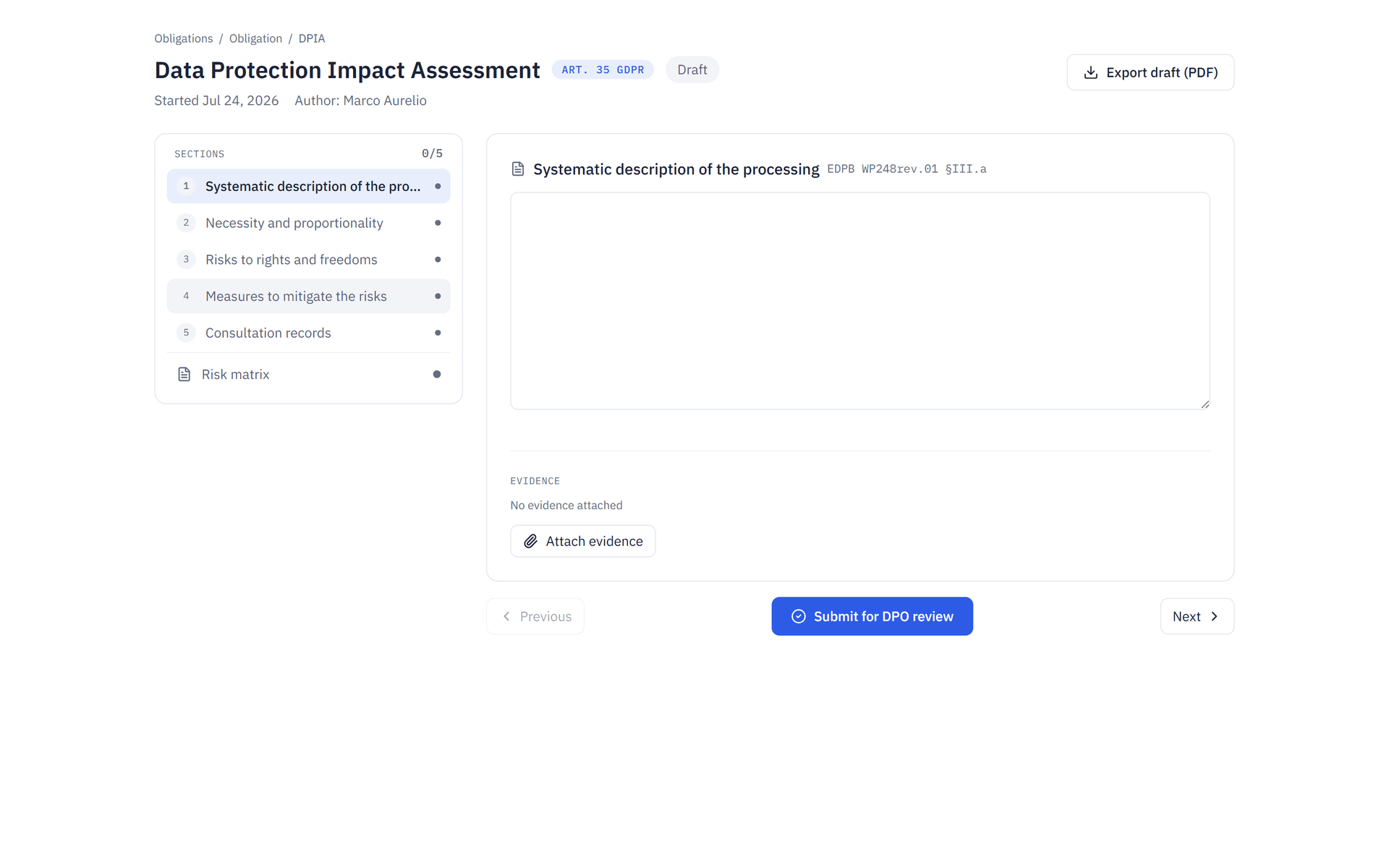
The editor opens with a header (an Art. 35 GDPR badge, the current status, the start date and author, and an Export draft (PDF) action) above a two-column workspace:
- On the left, a section navigator lists the five WP248rev.01 sections in order, each with a completion indicator, plus a Risk matrix entry underneath them. A progress counter shows how many of the five sections are complete.
- On the right, the editor shows one panel at a time — the selected section, or the risk matrix. Previous and Next controls step through them.
The five sections are fixed — you cannot add or reorder them. The risk matrix is a separate, optional panel (covered below); it is not counted in the section progress total.
The five sections
Each section maps to one part of the WP248rev.01 template. The section header shows its title and the EDPB reference it maps to.
| # | Section | EDPB ref | What to record |
|---|---|---|---|
| 1 | Systematic description of the processing | WP248rev.01 §III.a | What the processing is, its scope, context, and purposes |
| 2 | Necessity and proportionality | WP248rev.01 §III.b | Why the processing is necessary and proportionate to the purpose |
| 3 | Risks to rights and freedoms | WP248rev.01 §III.c | The risks the processing poses to individuals' rights and freedoms |
| 4 | Measures to mitigate the risks | WP248rev.01 §III.d | The safeguards and mitigations you apply, or will apply, to reduce those risks |
| 5 | Consultation records | WP248rev.01 §III.e | Any consultation with the DPO, and with the supervisory authority where one was carried out |
Each of the five sections is a free-text field — you write the assessment in your own words. The structured ratings live in the risk matrix, alongside these sections rather than inside them.
The risk matrix
The Risk matrix panel lets you record identified risks as structured rows instead of, or in addition to, the free-text section 3. Each row has:
- a risk statement (a short description of the risk),
- a Likelihood dropdown — Unlikely, Possible, or Likely, and
- a Severity dropdown — Moderate or Severe.
From those two choices the editor shows a residual risk level for the row — Low, Medium, or High. Rate each risk as it stands after the mitigations you record in section 4, so the level reflects the residual risk rather than the inherent risk. A row you have not fully rated shows Not rated and contributes no level. A summary at the top of the panel reports the highest residual level across all rated rows.
The level is a fixed, published lookup from the two ratings you pick — nothing is inferred about your processing:
| Likelihood \ Severity | Moderate | Severe |
|---|---|---|
| Unlikely | Low | Medium |
| Possible | Low | High |
| Likely | Medium | High |
This level is your own rating expressed through a lookup table, not an ObligoBoard verdict. ObligoBoard does not judge whether the residual risk is acceptable or whether the DPIA is adequate — the matrix simply keeps your likelihood and severity ratings, and the level they imply, in one structured, exportable place. Use Add risk to add a row and the row's remove control to delete one. The matrix is optional: it is not part of the completeness check, and a DPIA created before the matrix existed simply starts empty.
Per-section evidence
Each of the five sections has its own evidence list, separate from the obligation-level evidence described in Obligation detail. Evidence attached to a DPIA section belongs to that section of the DPIA, not to the obligation's Evidence Pack.
- Upload only. There is no option to link an existing evidence item; you attach a file to the section directly.
- While draft only. The attach control appears only while the DPIA is a draft. Once submitted, you cannot add evidence.
- Accepted file types. PDF, Word (
.doc/.docx), Excel (.xls/.xlsx), CSV, text, ODF (.odt/.ods), common image formats (.png/.jpg/.jpeg/.gif/.webp), and.zip.
Evidence counts toward completeness — a section with attached evidence but no written text is still considered complete (see Submitting for review).
Autosave
The editor saves each section on blur — when you leave the text field (click elsewhere or tab out), that section is saved. It is not a timed or debounced save; nothing is sent while you are still typing in a field. The risk matrix saves the same way: changing a Likelihood or Severity dropdown, or adding or removing a row, saves immediately, and a risk statement saves when you leave its field.
A status line under each section (and under the matrix) shows the save state:
- Saving… while the request is in flight
- Saved with the time once it has persisted
- Couldn't save — try again if the save failed
Because the save fires on blur, text you type and then submit without first leaving the field would normally be unsent. To avoid that, the submit action flushes any in-flight or still-dirty section before it runs the completeness check, so text you just typed is never lost on submit.
Submitting for review
The Submit for DPO review button appears only while the DPIA is a draft. Before submitting, the editor checks that every section is complete. A section is complete if it has either:
- non-blank written text, or
- at least one attached evidence item.
All five sections must be complete. If any are not, submit is rejected with a banner listing each incomplete section alongside its EDPB reference, and the DPIA stays a draft. Address the listed sections — write something in the text field or attach evidence — and submit again. The risk matrix is optional and is not part of this check.
On a successful submit, the DPIA's status moves from Draft to Submitted for DPO review, and the record is locked for editing while it awaits sign-off.
After you submit — DPO sign-off
Submitting locks the record for the author: the text fields, the attach control, and the submit button are removed or disabled while the DPIA is Submitted for DPO review. What happens next is a DPO sign-off, handled in the app.
Who can sign off. A reviewer is the organisation owner, a team member with the DPO role, or — for agency-managed accounts — the agency owner. Reviewers see a review queue at /dpia/review listing the DPIAs awaiting their sign-off, and each row opens the DPIA. On a submitted DPIA, a reviewer sees Approve and Reject controls; a non-reviewer viewing the same record just sees it read-only.
Approve. Approving moves the DPIA from Submitted for DPO review to DPO approved. (DPO approved is the name of the status; it is applied whichever reviewer approves — owner, DPO, or agency owner.) The submitter is notified by email.
Reject (reopen to draft). Rejecting requires the reviewer to enter a comment and returns the DPIA to Draft, so the author can edit and resubmit. The reviewer's comment appears as a banner in the editor so the author knows what to change, and it is cleared when the DPIA is resubmitted. Rejection is the reopen path: an author cannot reopen a submitted DPIA themselves, but a reviewer's reject sends it back to draft. The submitter is notified by email.
Approving and rejecting are the reviewer's decisions, recorded for your audit trail — a human sign-off captured in the tool, not an automated compliance verdict.
What is not yet wired. The status model carries two further states — Submitted to authority and Closed — but ObligoBoard does not yet provide in-app actions to move a DPIA into them. There is no submit-to-authority step and no close action in the product today. If you need supervisory-authority submission or formal closure recorded, handle that outside the app for now; the two labels exist so the status field is ready when those workflows are added.
In the app today, a DPIA moves Draft → Submitted for DPO review → DPO approved (or back to Draft on a reject). There is no submit-to-authority or close button yet — DPO approved is the furthest state the editor reaches.