Notifications
Configure email notifications for compliance deadlines, trial expiry, and your weekly digest — so nothing falls through the cracks.
ObligoBoard sends automated email notifications to keep you and your team on top of compliance deadlines. You choose which of them you receive from Settings → Notifications.
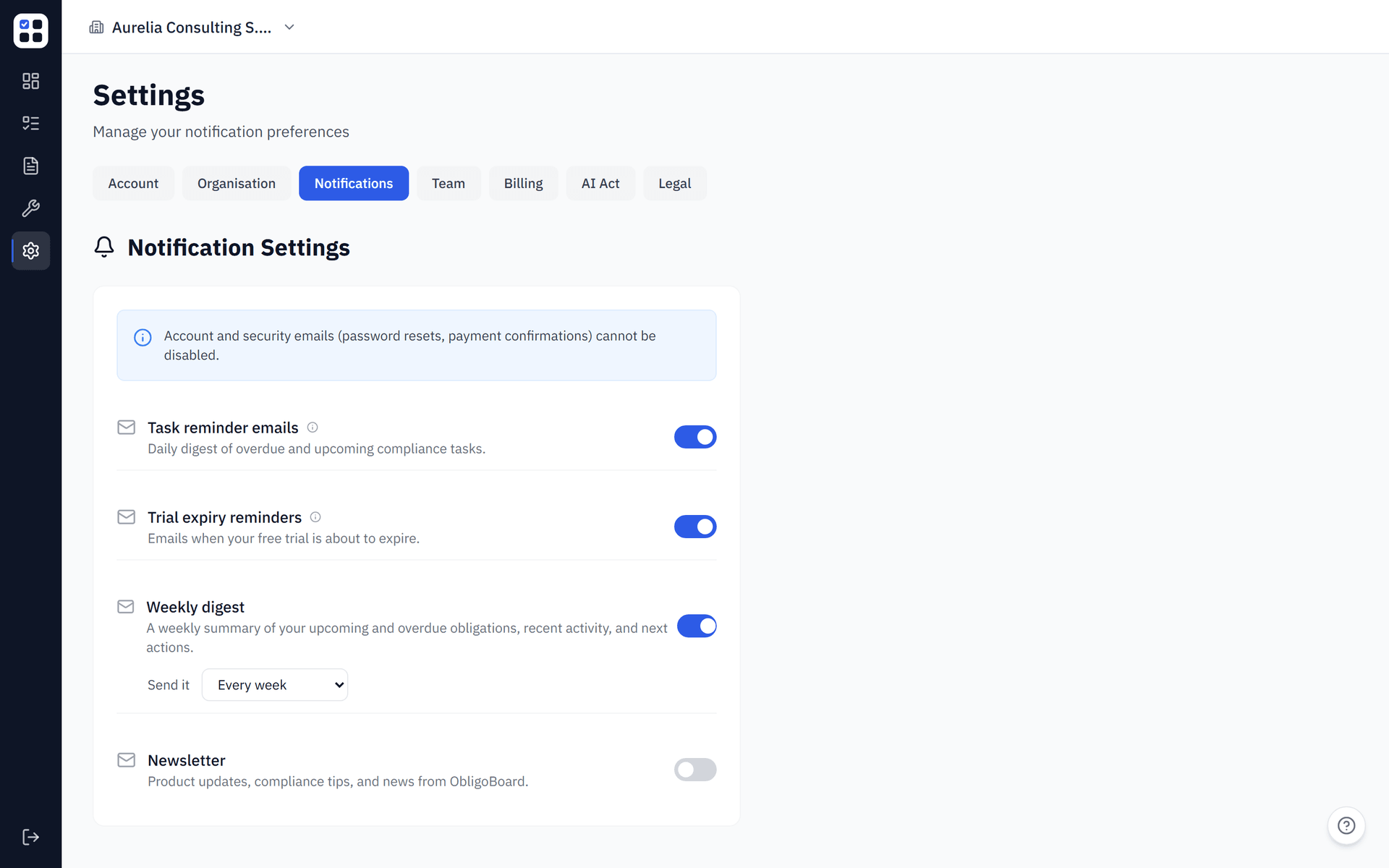
Notifications you can control
The Notifications tab has four toggles. Each one is saved the moment you flip it.
Task reminder emails
A daily digest of the compliance tasks that need your attention — overdue, due today, and due within the next 3 days — collected into a single email. Overdue tasks escalate rather than nag: a reminder is included on day 1, day 7, and day 14 overdue, not every day. The digest runs once a day at 07:00 UTC and is only sent to people who have tasks to act on. On by default.
Task reminders only cover obligations that are not yet completed or skipped. Unassigned tasks fall back to the organisation admin.
Trial expiry reminders
Emails sent to a user on a free trial when the trial is about to expire — 3 days before and again 1 day before the trial ends. This job runs daily at 08:00 UTC. On by default; turning it off stops the trial-expiry emails for your account.
Weekly digest
A weekly summary of your upcoming and overdue obligations, recent activity, and next actions. On by default, with a frequency selector so you can receive it every week, every two weeks, or every month. If nothing is due, you still get a short "you're all caught up" email rather than silence.
Newsletter
Product updates, compliance tips, and news from ObligoBoard. This is marketing email, off by default — it is sent only if you opt in, and opting in adds you to our mailing list.
Emails you can't turn off
Two kinds of email are transactional and are not governed by the toggles above:
- Task assignment emails — sent immediately when a team member assigns an obligation to you. Includes the obligation title, due date, and a direct link to open it.
- Account and security emails — password resets, email verification, and payment confirmations. These are mandatory for account management and cannot be disabled.
Configuring your notification preferences
Go to Settings → Notifications
Click Settings in the sidebar, then select the Notifications tab.
Toggle notification types
Enable or disable each of the four notification types using the toggles. For the weekly digest, pick how often you want it from the frequency selector.
Save
Changes take effect immediately — there is no separate save button.
Account and security emails (password resets, payment confirmations) cannot be disabled — these are mandatory for account management. Trial expiry reminders, task reminders, the weekly digest, and the newsletter are all opt-out (or, for the newsletter, opt-in).
How reminders are triggered
Three scheduled jobs power these emails:
| Notification | Schedule (UTC) |
|---|---|
| Task reminder digest | Daily, 07:00 |
| Trial expiry reminders | Daily, 08:00 |
| Weekly digest | Not yet active — no schedule |
When an admin loads the Dashboard, a background trigger also fires the task and trial reminder jobs — this acts as a safety net in case a scheduled run is delayed. (The weekly digest never piggybacks on that trigger; it only ever runs on its own schedule.) A de-duplication log makes sure the same digest is never sent twice in one day.
Email delivery
All emails are sent from info@obligoboard.com. Add this address to your safe-senders list to ensure notifications aren't filtered to spam.
If you're not receiving notifications:
- Check your spam/junk folder
- Verify your email address is confirmed in Settings → Account
- Confirm notifications are enabled in Settings → Notifications
- Contact support at support@obligoboard.com