DPA signing
How to sign the Data Processing Agreement (GDPR Art. 28) self-service from Settings → Legal — the six signatory fields, the generated PDF, signing history, and re-signing — plus the sub-processor change-notice banners and their time-boxed 30-day objection window.
The Data Processing Agreement (DPA) is the contract under GDPR Article 28 between ObligoBoard, as the processor, and your organisation, as the controller. ObligoBoard lets you sign it yourself from Settings → Legal. This page covers the signing flow (the six signatory fields, the generated PDF, signing history, and re-signing) and the sub-processor change-notice banners with their 30-day objection window. The public, unsigned DPA template lives at /dpa and is a separate page.
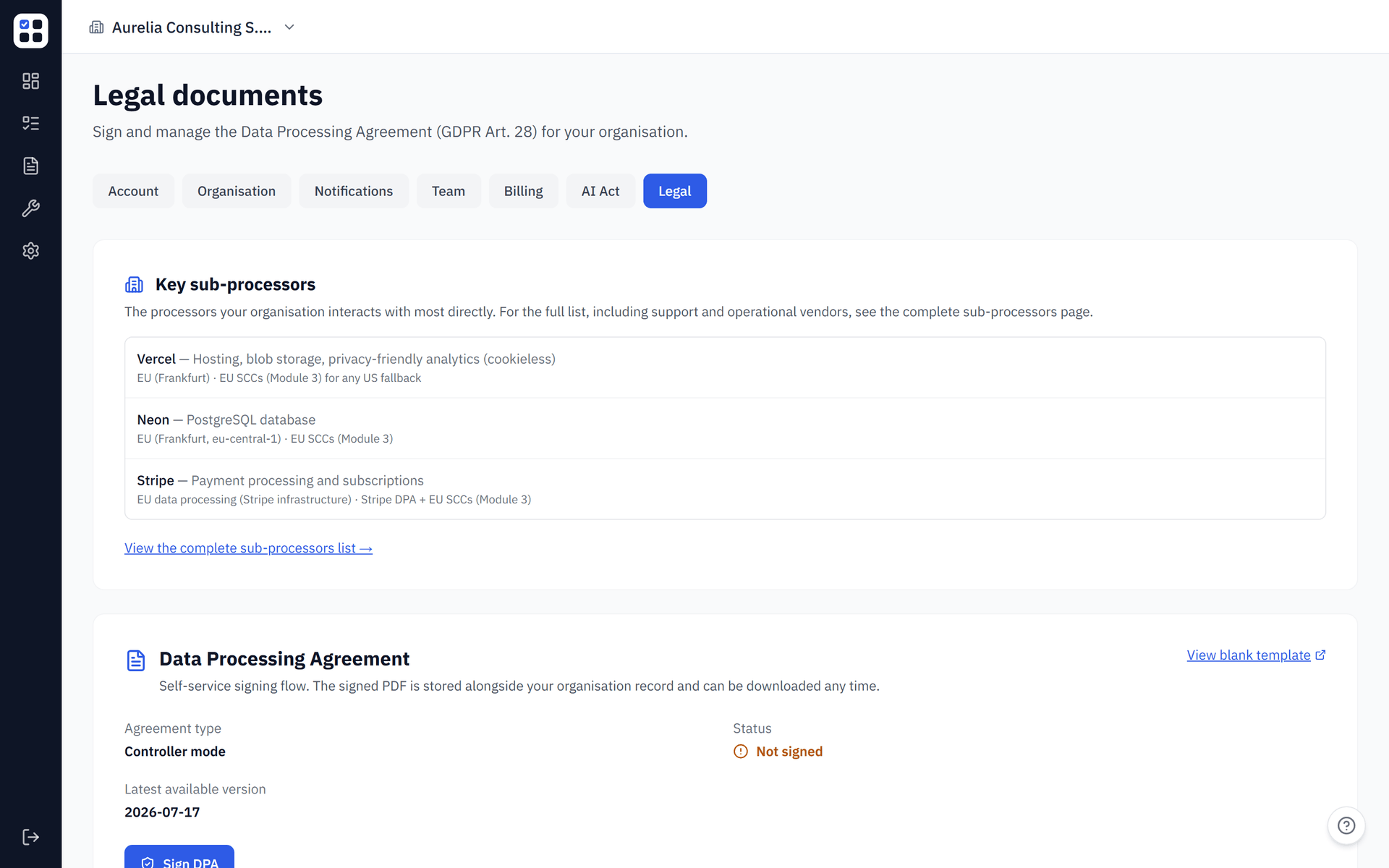
Signing the DPA
Who can sign
Signing is owner-only. The Legal tab, the Sign DPA button, and the Re-sign button are hidden from admins and members, and the sign, status, and download APIs all reject non-owners. The DPA binds the organisation as a whole, so the legally authorised representative is the owner.
If you are an admin or a member and need the DPA signed, ask your organisation's owner to sign it on behalf of the organisation. There is no sign action available to your role.
The six signatory fields
The sign form collects six fields, all required. The signatory name and email are pre-filled from your user account; change them if you are signing in a different representative capacity.
| # | Field | What to enter |
|---|---|---|
| 1 | Customer legal name | Your organisation's legal name |
| 2 | Registered address | Your organisation's registered address |
| 3 | VAT or registration number | Your organisation's VAT or registration number |
| 4 | Signatory name | The name of the person signing |
| 5 | Signatory role / job title | The signatory's role or job title |
| 6 | Signatory email | The signatory's email address |
Signing
Open Settings → Legal
Go to Settings → Legal. The DPA status card shows whether the DPA is not signed, signed at the current version, or signed at an outdated version.
Click Sign DPA
Click Sign DPA to open the signing dialog.
Fill the six fields and sign
Complete the six signatory fields and click Sign and store. ObligoBoard generates a signed PDF and stores it against your organisation.
The PDF is generated server-side. The bracketed placeholders in the DPA template are filled with your six field values and the signing date, the unsigned signature block is removed, and a typed-name attestation block is appended with the signatory details and ObligoBoard's operator identity. The attestation records that the signature was made through the self-service flow and that the version, signatory identity, source IP, and user agent are logged in the audit trail.
You do not choose the DPA version — ObligoBoard always signs the current version, shown on the status card. The raw storage URL of the PDF is never exposed to you; the signed PDF is reached only through the in-app download button.
Your signed PDF and signing history
The status card shows the current state: Not signed, Signed (current version), or Signed (outdated — please re-sign). It also shows the latest available version, your signed version, the signed-on date, the signatory's name, role, and email, and a link to view the blank template at /dpa.
- Download signed PDF streams the signed PDF (filename
ObligoBoard-DPA-{version}.pdf) through an authenticated endpoint. - Signing history is an audit log of every DPA signing event for your organisation — your first sign and every subsequent re-sign — with Date, Version, and Source columns. It is scoped to your organisation, not to the individual user.
Re-signing
When ObligoBoard publishes a new DPA version, your signed copy becomes outdated. The status card shows Signed (outdated — please re-sign) and an amber Re-sign current version button appears. Re-signing uses the same dialog and the same six fields as the first sign. It overwrites your current signed snapshot on the organisation record — the previous snapshot is no longer the active one — but every signing event remains in signing history, so the audit trail is preserved.
Sub-processor change notices
The notice banner
When ObligoBoard adds or changes a sub-processor, every organisation with a signed DPA is notified by email, and an amber banner appears at the top of Settings → Legal. The banner states the notification date, the date the objection window closes, and that the change is made under DPA Section 6.4(b). The banner stays visible while the objection window is open.
The 30-day objection window
You have 30 days from the notification date to object to a sub-processor change on documented data-protection grounds. The window is computed from the date you were notified — there is no separate "effective date." Once the 30 days elapse, the banner no longer appears and the window is closed.
The objection window is 30 days from the notification date and is time-boxed. Object within that window — once it closes, the banner disappears and the change proceeds.
How to object
There is no in-app objection form. To object, use the I object — contact legal@obligoboard.com link in the banner (it opens a pre-addressed email), or reply to the notification email. Objections are handled out of band by ObligoBoard; the app does not record an objection status or automatically block a change.
The sub-processor list
The current sub-processor list is published at /sub-processors — a public page with columns for each sub-processor's name, service, region (data location), and transfer mechanism. Material changes to that list are the events that trigger the notice banner above.