Agency setup
Provision sub-accounts for SME clients, invite associates, assign agency roles, and archive clients to release slots.
This page walks you through setting up your agency once the Agency tier is active: provisioning your first sub-account, inviting associates with the right role, the agency-flow onboarding short-cut, and archiving a client to release the slot they hold.
Before starting, confirm your subscription is active at Settings → Billing under the agency parent account, or at /agency/billing. The agency dashboard at /agency only renders for users who hold an agency_owner, agency_admin, or agency_member grant.
Provisioning your first sub-account
A sub-account is a stand-alone ObligoBoard workspace dedicated to one of your SME clients. Each sub-account has its own obligations, frameworks, evidence library, team, and audit log — and counts as one slot against your agency subscription (see Agency billing & slots).
Open the agency dashboard
From the sidebar, click Agency (visible to agency-tier users) — or go directly to /agency. The dashboard shows every sub-account you currently manage.
Click '+ New client'
The CTA at the top of the dashboard launches the agency-flow onboarding wizard with ?agencyFlow=1 set on the URL. The button is hidden for agency_member users (they cannot create clients) and disabled with a tooltip when you're at your slot limit.
Complete the four-step wizard
The wizard mirrors the standard ObligoBoard onboarding wizard but with two ergonomic short-cuts: the country is pre-filled from your agency's most-recently-onboarded sub-account, and a suggested framework is pre-selected based on your agency's history. You can override either.
Land on the new client's dashboard
On submit, ObligoBoard creates the organisation, links it to your agency, seeds the chosen framework's baseline obligations, sets it as your active workspace, and routes you to /dashboard. The breadcrumb at the top reads <Your agency> → <Client name> so you always know which workspace you're in.
The new sub-account is provisioned for the caller, not the agency owner. If an agency_admin named Alice creates a sub-account, Alice gets the admin profile on it. The agency owner can be added explicitly via Settings → Team if they need direct access too.
Inviting associates to your agency
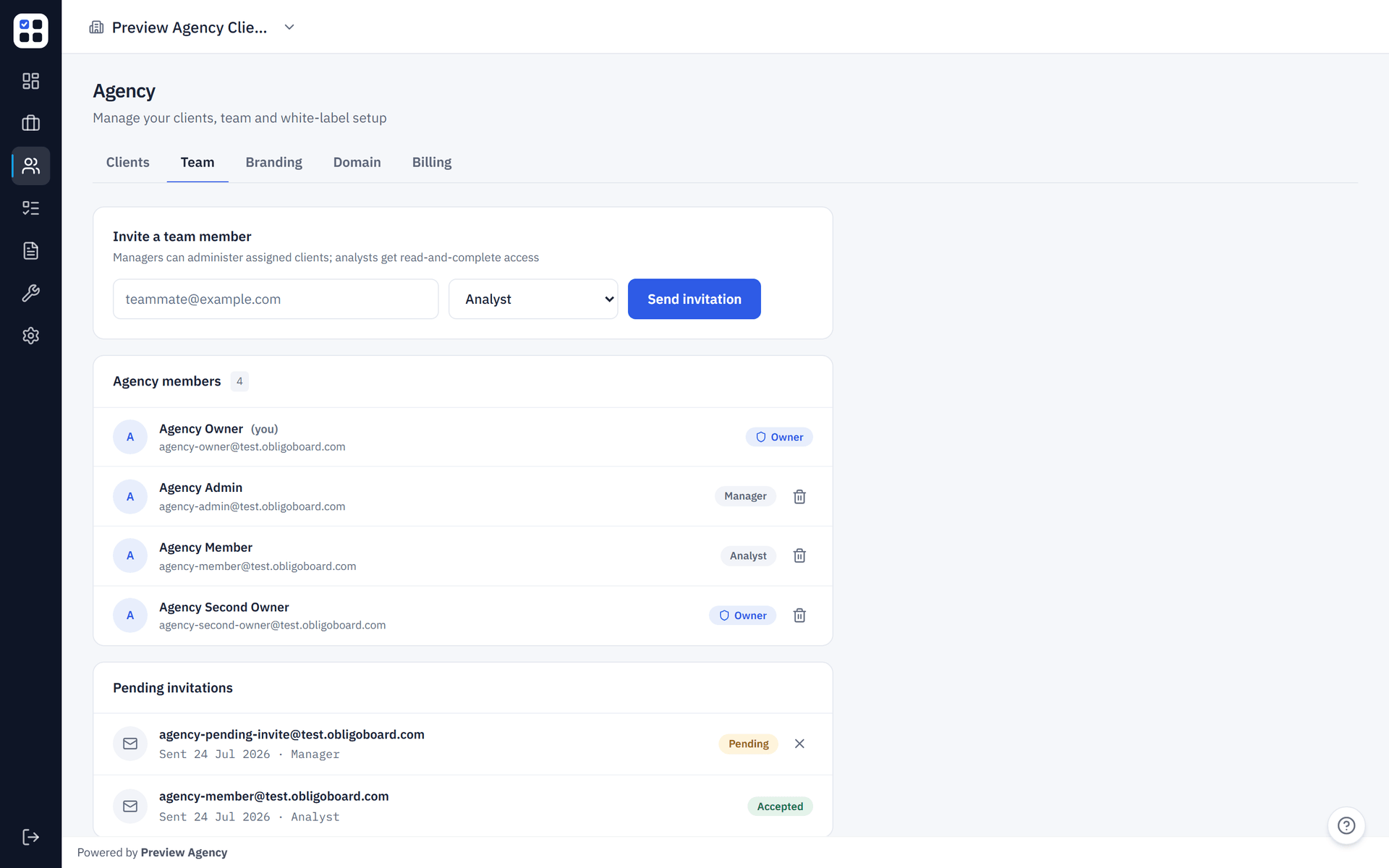
The Agency tier separates agency-level roles (people who work inside your firm) from per-client roles (people who work inside a specific SME workspace). You manage the first set from /agency/team.
The three agency roles
| Role | What they can do | What they cannot do |
|---|---|---|
agency_owner | Everything — invite/remove agency members, manage billing, create sub-accounts, edit branding, configure custom domain, supervise every workspace | Nothing within the tier (the owner is unconstrained at the agency layer) |
agency_admin | Create new sub-accounts, supervise existing ones | Invite associates, manage agency billing, change branding, transfer ownership |
agency_member | View /agency dashboard, open every non-archived sub-account under the agency, and work in those workspaces with effective member access | Create new sub-accounts, see the agency-team page, change agency settings |
Ownership is non-transferable via the team page today. To change agency ownership, contact support. The agency_owner role is intentionally excluded from the team-invitation form so an admin can't bootstrap a second owner unilaterally.
Sending an invitation
Go to /agency/team
From the sidebar, click Agency team (visible only to agency_owner). The page lists current memberships and any pending invitations.
Fill in the invite form
Enter the associate's email address and pick agency_admin or agency_member. The owner role is intentionally absent from the dropdown.
Send
The invitee receives an email with a token-protected link valid for 24 hours. Pending invitations are visible on the team page; click Revoke at any time before they accept.
Acceptance
The invitee clicks the link, signs in (or creates an account) using the email address the invitation was addressed to, and lands on a confirmation page. Their membership row materialises immediately and they see the agency dashboard on their next sign-in.
The invitation is bound to the addressed email. If the invitee signs in with a different account, the acceptance is rejected with a 403. Re-send the invitation to the correct address if needed.
Removing an associate
From /agency/team, click the trash icon next to a membership row to remove an associate. Their access is revoked immediately. ObligoBoard refuses to remove the last agency_owner — that's the load-bearing invariant for billing custody and it's enforced server-side as a 409 with code: LAST_OWNER.
The onboarding-as-agency flow (?agencyFlow=1)
Behind the + New client CTA is a flag-driven variant of the standard onboarding wizard. You can also reach it manually by appending ?agencyFlow=1 to /onboarding. It does three things differently:
- Pre-fills the country from your agency's most-recently-onboarded sub-account, so a commercialista who only serves Italian SMEs doesn't pick "Italy" 50 times in a row.
- Pre-selects a framework based on your agency's history (the framework you've activated most often).
- Pins the new sub-account as your active workspace so you land on its dashboard instead of bouncing back to
/agency.
If you ever need to onboard a sub-account without the agency-flow conveniences (for example, to test the standard wizard), just remove the ?agencyFlow=1 query parameter — the wizard then behaves exactly as it does for non-agency users.
Archiving a client to release a slot
When an SME client churns or completes a fixed-term engagement, archive their sub-account to release the slot they're holding. Slots only count active (non-archived) sub-accounts; archiving is immediate and reversible — your data is preserved and you can un-archive at any time.
Open the client's workspace
From /agency, click the row of the client you want to archive. Confirm in the breadcrumb that you're inside the right workspace.
Go to Settings → Organisation
The archive control lives at the bottom of the organisation settings page. Click Archive organisation.
Confirm
ObligoBoard asks you to confirm the archive. Once confirmed, the workspace is hidden from the agency dashboard, no team member can sign in to it, and the slot is released back to your available_seats pool — so you can immediately provision another sub-account in its place without buying more seats.
Archiving releases a slot in ObligoBoard but does not reduce your Stripe billing on its own. Your purchased_seats (and therefore your monthly Stripe charge) only changes when you explicitly lower the seat quantity in the Stripe customer portal. If you don't intend to backfill the released slot with another client, downsize purchased seats in the portal to actually reduce the bill. Founder programs (FOUNDING_STUDIOS25, etc.) are unaffected by archive cycles within their term. See Agency billing → How seat changes are billed for the full mechanics.
What's next
- Agency billing & slots — what counts as a slot, the bracket table, the volume-mode worked example, founder programs.
- White-label & custom domain — make sub-accounts feel like your firm's own product.
- Agency FAQ — quick answers to the operational questions that come up most often.